
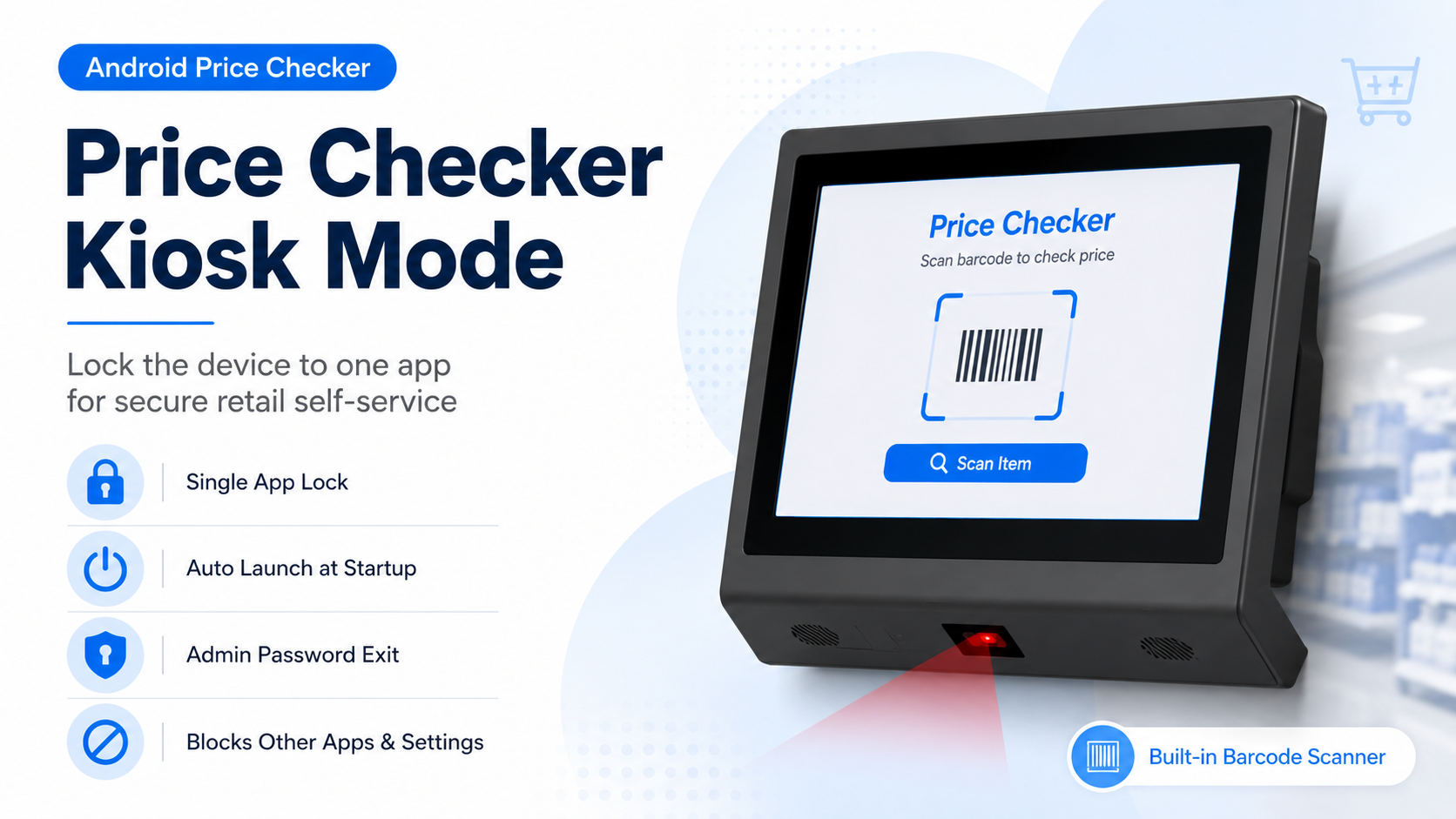
Price Checker Kiosk Mode helps Android price checkers run as dedicated retail terminals. It locks the device to one app, prevents users from opening other applications, and keeps the scanning process simple for supermarkets, pharmacies, and retail stores.
For many retail stores, supermarkets, pharmacies, and convenience stores, an Android price checker has one main job: scan a barcode or QR code and show the product price, product name, promotion, or stock information.
However, when stores install the device in a public area, they often face one common problem. End users may touch the screen randomly, open other applications, enter system settings, or exit the price checking software.
Because of this, many customers ask: “Can I disable the touch screen?”
In most projects, customers do not really need to turn off the touch function. Instead, they need Android Price Checker Kiosk Mode to lock the device to one application and prevent users from opening anything else.
What Is Price Checker Kiosk Mode?
Android Price Checker Kiosk Mode locks the device to one selected application. Once store staff enable it, the price checker only runs the assigned price checking app.
As a result, end users cannot easily open other applications, change system settings, or leave the main scanning interface.
For retail applications, Kiosk Mode turns a normal Android device into a dedicated self-service price checking terminal. Therefore, it is very useful for public retail environments.
Why Price Checker Kiosk Mode Works Better Than Disabling Touch
Some customers consider disabling the touch screen to avoid misuse. However, we usually do not recommend completely turning off touch operation.
The reason is simple. Store staff still need the touch screen for setup, maintenance, network configuration, software updates, and troubleshooting.
Therefore, Kiosk Mode offers a more practical solution. It keeps the touch function available for authorized staff while limiting what normal users can access.
For example, the device can stay on the scanning page, while only authorized staff can exit the application with an administrator password.
In this way, stores can prevent misuse without making daily maintenance difficult.
Key Functions of Price Checker Kiosk Mode
Kiosk Mode can support different functions depending on the Android board, firmware, and software solution.
For example, it can lock the device to one price checking application, auto-start the selected app after power on, block access to other applications, limit access to Android system settings, hide navigation buttons, and support password-protected exit for maintenance. For system-level kiosk deployment, Android lock task mode can help restrict dedicated Android devices to a single app or a set of approved apps.
In addition, these functions help supermarkets, chain stores, retail shops, and public self-service areas keep the device stable and easy to manage.
Two Ways to Set Up Android Kiosk Mode
There are mainly two ways to set up Kiosk Mode on an Android price checker.
1. Use the Customer’s Own Kiosk Software
If customers already have their own kiosk software, MDM software, or price checking app with kiosk functions, their software team can control the kiosk function directly.
For example, the software can provide full-screen display, a fixed scanning page, password-protected exit, and limited page switching.
In this case, customers usually only need a standard Android motherboard, because their own software handles the kiosk control.
Therefore, this solution works well for customers who already have a mature software system or device management platform.
2. Use Customized Android Board or Firmware
On the other hand, customers can also choose a customized Android motherboard or firmware with built-in Kiosk Mode.
With this solution, customers install their own price checker app on the device first. Then they add or select the app in the Kiosk Mode setting.
After setup, the system locks the device to this app. As a result, the device can run as a dedicated price checking terminal.
This solution suits projects that need stronger system-level control, such as blocking other apps, restricting system settings, and supporting administrator password exit. In addition, Android dedicated device management is also useful for customer-facing devices such as kiosk services, digital signage, and inventory terminals.
For this reason, customized Android firmware is often a better choice for bulk deployment or long-term retail projects.
Can Customers Add Their Own App to Price Checker Kiosk Mode?
Yes. Customers can add their own app to Kiosk Mode if the device uses customized Android firmware with built-in Kiosk Mode.
First, they install their APK on the device. Then, they select the app in the Kiosk Mode setting.
After that, the system locks the device to the selected app.
However, if the device uses a standard Android motherboard, it may not include our built-in Kiosk Mode function.
In this case, customers can still use their own kiosk software or MDM solution to manage the device.
QR Code Scanner Configuration for Android Price Checkers
Besides Kiosk Mode, QR code scanner configuration also plays an important role in price checker applications.
A built-in QR code scanner usually supports barcode type selection, scan mode, prefix and suffix settings, keyboard output mode, and other scanning parameters.
For retail projects, customers should configure the scanner according to their software input requirements.
In this way, the device can read barcode data correctly and send it to the price checking application smoothly.
Where Can Android Price Checkers Be Used?
Retailers can use Android price checkers with Kiosk Mode in supermarkets, convenience stores, pharmacies, retail chain stores, grocery stores, warehouses, shopping malls, and self-service product information points.
Moreover, these devices are especially useful in places where customers need quick product information without staff assistance.
By combining barcode scanning, Android system, Wi-Fi or Ethernet, and Kiosk Mode, the device gives customers a simple and reliable self-service price checking solution.
Conclusion
For Android price checker projects, Kiosk Mode usually works better than completely disabling the touch screen.
It keeps the device easy to maintain. Meanwhile, it prevents end users from opening other apps, changing system settings, or exiting the price checking software.
Customers can set up Kiosk Mode through their own kiosk software, MDM solution, or customized Android motherboard and firmware.
In conclusion, choosing the right Android price checker with suitable Kiosk Mode support can make deployment easier and improve long-term project stability for retail customers, software developers, and system integrators.
FAQ of Kiosk Mode:
1. Can I disable the touch screen on an Android price checker?
In most cases, it is not necessary to completely disable the touch screen. Kiosk Mode is a better option because it locks the device to one app while still allowing authorized maintenance.
2. Can I add my own app to Kiosk Mode?
Yes, if the device uses customized Android firmware with built-in Kiosk Mode, you can install your APK and select it in the Kiosk Mode setting.
3.Do I need customized firmware for Kiosk Mode?
Not always. If you already have your own kiosk software or MDM solution, a standard Android board may be enough. If you need system-level control, customized firmware is recommended.
4. Can the Android price checker auto-start my app after power on?
Yes, this can usually be supported by Kiosk Mode or customized firmware, depending on the Android board and system configuration.


