Linux POS hardware compatibility should be checked against the exact operating system, POS application and peripherals you plan to use. A terminal that boots into Debian or Ubuntu still needs testing for touchscreen input, customer displays, receipt printing and recovery after a restart.
For POS software companies and system integrators, a useful sample evaluation produces more than a working desktop. It produces a record of the configuration tested, the functions that passed and any issues that still need attention.
Linux POS Hardware Compatibility Starts with the Software Environment
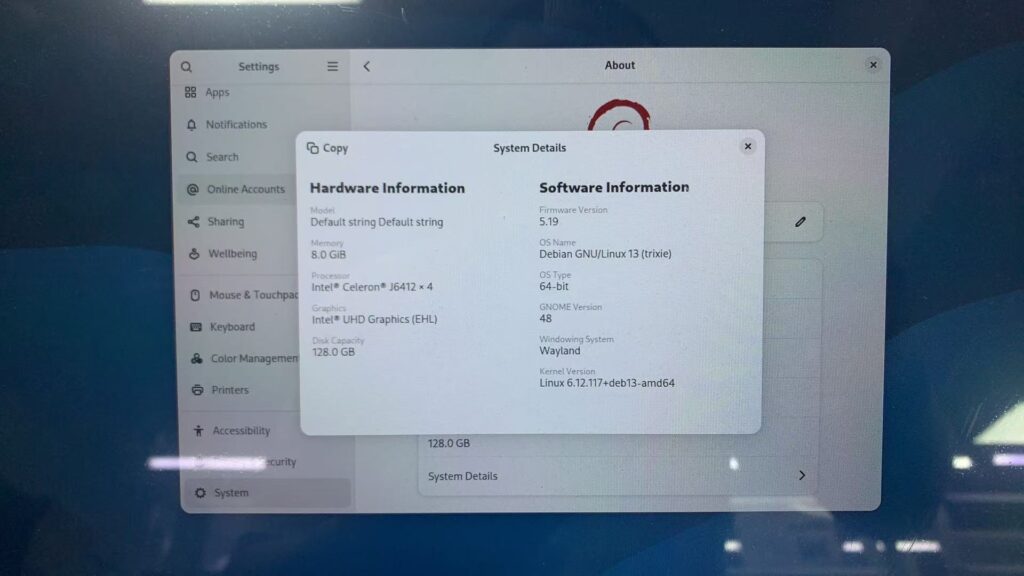
In a recent UK POS hardware project, the customer specified Debian 13 “trixie,” a 64-bit installation and a Linux 6.12-series kernel for its Python-based EPOS application.
The requested hardware included a 15.6-inch main touchscreen, a customer display and a built-in 80mm receipt printer.
This gave the hardware discussion a clear starting point. Instead of asking whether the terminal “supports Linux,” both sides could work toward a specific software environment and peripheral configuration.
Before ordering a sample, share:
- Linux distribution, release and processor architecture.
- Required kernel version.
- POS application framework and runtime requirements.
- Desktop environment or browser-based operating mode.
- Display arrangement and peripheral interfaces.
- Required startup, shutdown and recovery behaviour.
A Python-based application may also depend on specific packages, libraries or device permissions. Include those requirements in the sample evaluation plan.
Linux POS Compatibility: Touchscreens and Dual Displays
A visible desktop confirms that the screen displays an image. It does not confirm that the checkout interface will work correctly.
Test touchscreen input across the full main display, including buttons near the corners and edges. Then repeat the check with the customer display connected.
For dual-screen POS hardware, confirm that:
- The cashier and customer displays show the intended content.
- Touch input controls the correct screen.
- Resolution, scaling and orientation suit the application.
- Display settings remain correct after rebooting.
- The application opens on the intended display.
If the installation uses Wayland or X11, record the session used for testing. The software team should validate the same display environment intended for deployment.
Also confirm whether the customer display needs touch input. A screen used only for prices and promotions has different requirements from one used for customer interaction.
Linux POS Printer Compatibility: Test from the Application
For a built-in printer, first confirm how it connects to the computer. A printer mounted inside the enclosure may still use USB internally.
USB detection is a useful first check, but the next step is to print from the actual POS application using its intended driver, library or command method.
The receipt test should cover:
| Test | What to verify |
|---|---|
| Receipt layout | Text, prices and columns fit the paper |
| Required content | Logos, barcodes, QR codes and language characters print correctly |
| Paper cutting | The cutter operates at the correct point |
| Repeated printing | A sequence of receipts completes without missing jobs |
| Error handling | The application handles paper-out or other available printer status signals |
| Restart | Printing works again after restarting the application and terminal |
Confirm the printer model, supported command set and available Linux integration documents before approving it.
A successful printer self-test should be recorded separately from a successful receipt printed by the customer’s EPOS application.
Include Scanners, Cash Drawers and Network Connections
Each peripheral should be tested through the workflow that will use it.
For a barcode scanner, scan real product labels into the EPOS application. Check the required barcode types, input mode and suffix settings.
For a cash drawer, confirm whether it connects through the printer or another controller. Test the opening command from the application and verify the connector pinout and electrical requirements.
For networking, test the connection method intended for the store. If the deployment needs Wi-Fi, checking Ethernet alone leaves part of the sample evaluation unfinished.
Where serial devices are required, confirm the interface settings and application access permissions.
Check Linux POS Startup and Recovery
Daily operation includes restarts, interrupted connections and peripheral errors.
Agree on a recovery test plan before approving the sample. It may include:
- Cold startup into the intended application.
- Restarting the POS application.
- Reconnecting a scanner or printer.
- Recovering from a network interruption.
- Restoring operation after a controlled power-loss test.
- Running a representative workload for an agreed duration.
Record the test duration, workload and observed problems. An unexplained freeze or missing peripheral needs investigation before the configuration is approved.
Power-loss testing should use a test environment and test data, with the software team checking transaction and database recovery.
Linux POS Hardware Compatibility Checklist and Test Record
A sample report helps the software team reproduce the environment and gives purchasing a clear reference for future orders.
At minimum, record:
| Item | Details to retain |
|---|---|
| Hardware | Sample ID, motherboard model and revision, CPU, RAM and SSD |
| Firmware | BIOS version and relevant settings |
| Linux environment | Distribution, release, architecture and complete kernel version |
| Display environment | Desktop, Wayland/X11 session, resolution and screen arrangement |
| Peripherals | Exact printer, scanner, touchscreen and network device models |
| Application | EPOS version, runtime, dependencies and integration method |
| Results | Test steps, pass/fail status, logs and unresolved issues |
Basic system information can be collected with:
cat /etc/os-release
dpkg --print-architecture
uname -r
lsusb
lspci -nnk
These commands help identify the environment and connected hardware. Functional testing is still needed to confirm how the complete POS system behaves.
Confirm Configuration Changes Before Bulk Production
The approved sample should become a reference for subsequent orders.
In the UK project, the customer display was changed from 10.1 inches to 11.6 inches after the earlier housing mould was discontinued. The customer agreed to the change during sample preparation.
For a Linux POS project, changes should also be reviewed for their software impact. A replacement Wi-Fi module, touchscreen controller, motherboard or printer may require additional testing, even when the terminal looks the same.
Agree which component changes require notification and revalidation before bulk production. Review Linux POS hardware compatibility again whenever a motherboard, touchscreen controller, network module or printer is changed.
Frequently Asked Questions About Linux POS Hardware
Can an all-in-one POS terminal run Debian?
Some configurations can, but compatibility needs checking against the exact Debian release, kernel and hardware components. Approve the configuration after testing the application and peripherals you intend to use.
Does USB printer detection mean receipt printing will work?
No. Device detection and application printing are separate checks. Test the required receipt content, cutter operation and error handling from the POS application.
Can Ubuntu test results be used to approve Debian?
They can provide a useful reference, but they do not replace testing on the intended Debian environment. Record and validate the actual software configuration planned for deployment.
Planning a Linux POS Hardware Project?
SOMAN TECHNOLOGY CO., LTD. manufactures all-in-one POS hardware with OEM/ODM configuration options for software companies, distributors and system integrators.
Share your Linux distribution, kernel requirements, application environment, display arrangement and peripheral list. We can review the hardware requirements and discuss a suitable sample configuration for your team to evaluate.
Contact SOMAN to discuss your Linux POS hardware requirements.
Further reading: The Debian installation guide explains hardware detection and installer components. Use it alongside the documentation for the specific devices and application being tested.