
Unexpected Windows restarts can create serious problems in commercial environments. For example, a POS terminal may restart during checkout, a self-service kiosk may stop working during customer operation, or a mini PC may reboot while running multiple displays and peripherals.
In many cases, Windows restarts automatically when it detects a serious system issue. Sometimes, the screen may show a blue screen, black screen, or stop code error before the device reboots. People also call these errors stop code errors, bug checks, kernel errors, blue screen errors, or BSOD errors.
However, business users should not only restart the device and continue working. They also need to understand why the problem happened. A Windows stop code error may point to driver conflicts, software problems, storage issues, memory errors, power instability, overheating, or connected hardware.
Therefore, this guide explains how to troubleshoot unexpected Windows restarts on POS terminals, mini PCs, self-service kiosks, and industrial computers.
What Is a Windows Stop Code Error?
A Windows stop code error appears when Windows detects a serious issue that affects normal system operation. According to Microsoft, hardware devices, drivers, or software may trigger unexpected restarts, and the stop code can help users identify the possible cause of the problem.
Common Windows stop code errors include:
- PAGE_FAULT_IN_NONPAGED_AREA
- MEMORY_MANAGEMENT
- IRQL_NOT_LESS_OR_EQUAL
- SYSTEM_SERVICE_EXCEPTION
- WHEA_UNCORRECTABLE_ERROR
- KERNEL_SECURITY_CHECK_FAILURE
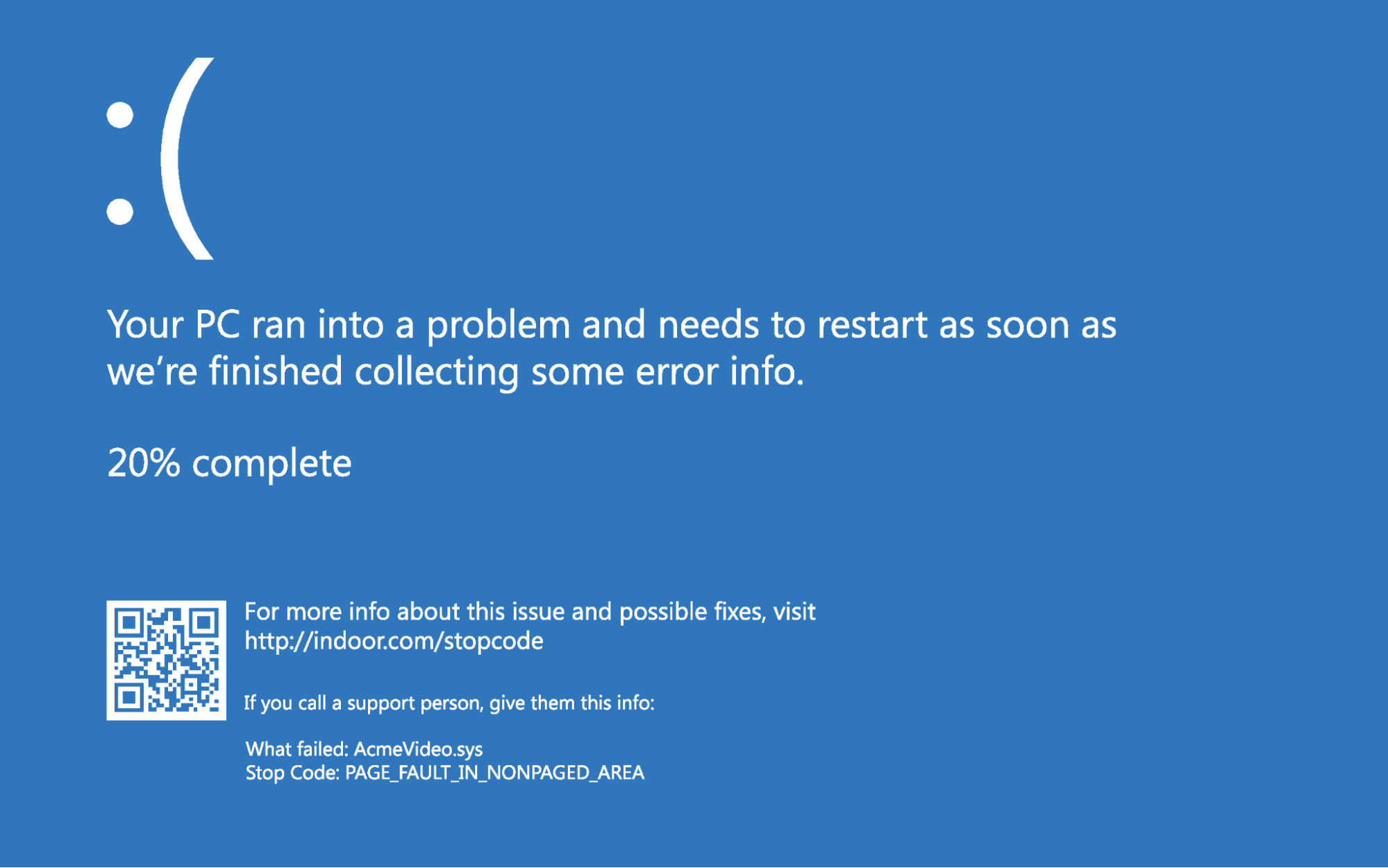
For end users, the stop code gives a useful reference. For technical teams, it helps narrow down the troubleshooting direction. For example, some stop codes may relate to memory, while others may suggest driver compatibility, storage, system files, or hardware conflict.
Why Do POS Terminals or Mini PCs Restart Unexpectedly?
For commercial Windows hardware, unexpected restarts do not always come from Windows itself. In many cases, the complete hardware environment also affects system stability.
For example, a POS terminal may work normally as a standalone computer. However, after users connect a receipt printer, barcode scanner, cash drawer, and customer display, the system may become unstable. Therefore, technicians should check both Windows and the connected peripherals.
1. Driver Compatibility Issues
Drivers help Windows communicate with hardware components. If a driver becomes outdated, missing, or incompatible, the system may restart unexpectedly.
For POS terminals and industrial computers, drivers may include:
- Touch screen driver
- Chipset driver
- Graphics driver
- LAN driver
- WiFi or Bluetooth driver
- Serial port driver
- USB controller driver
- Printer driver
- Barcode scanner driver
- Customer display driver
In addition, driver problems may appear after Windows updates or after users install new software. Therefore, if the restart issue starts after a driver update, the technical team should check that driver first.
2. Newly Added Hardware or POS Peripherals
New hardware may also cause unexpected restarts. For this reason, users should pay attention to any device added before the problem started.
This may include:
- Receipt printer
- Barcode scanner
- Cash drawer
- Customer display
- External USB device
- Second display
- Payment-related device
- RAM module
- SSD
- Expansion card
For example, if a POS terminal restarts only after connecting a scanner, the scanner driver, USB cable, power load, or communication setting may need further checking. In this case, users should disconnect all unnecessary peripherals first. Then, they can reconnect each device one by one to find the possible cause.
3. Insufficient Disk Space
Windows needs enough free disk space to run smoothly. It also needs space for temporary files, updates, system logs, and crash dump files. If the system drive has very little free space, Windows may become unstable.
This problem is common in POS systems that store transaction data, logs, images, database files, or software update files. Therefore, users should check the system drive regularly and keep enough free space.
As a general practice, avoid running Windows with a nearly full SSD. Also, remove unnecessary files, old logs, and temporary data when the storage space becomes low.
4. Memory or SSD Problems
Random restarts may also come from RAM or SSD issues. For example, the memory may not sit firmly in the slot, the SSD may have errors, or the component may not match the motherboard well.
For long-term commercial use, stable memory and storage are very important. POS terminals, kiosks, and industrial computers often run for many hours every day. As a result, low-quality or untested components may increase the risk of system instability.
Therefore, for bulk projects, it is better to use tested RAM and SSD combinations. Also, keeping the same configuration across the same batch can make maintenance easier.
5. Power Supply Instability
An unstable power supply may restart the system without warning. This may happen when users choose the wrong power adapter, use unstable voltage, or connect too many devices to the same power source.
For POS hardware, please check:
- Whether the device uses the original power adapter
- Whether the voltage and current match the device requirement
- Whether the power cable is loose
- Whether the power strip carries too many devices
- Whether connected peripherals need extra power
In addition, kiosk and embedded applications require careful power design. Before mass installation, project teams should confirm the total power load of the main unit and all connected peripherals.
6. Overheating or Poor Installation Environment
Heat can also cause unexpected shutdowns or restarts. Although fanless mini PCs and industrial computers often use aluminum housings for heat dissipation, they still need a suitable installation environment.
Please check whether the device works:
- Inside a closed cabinet
- Near heat-generating equipment
- In a dusty environment
- Under direct sunlight
- In a high-temperature workplace
- Without enough ventilation space
For self-service kiosks or embedded installations, the internal structure should leave enough space for airflow. Otherwise, heat may build up inside the cabinet and affect system stability.
Step-by-Step Troubleshooting Guide
Step 1: Record the Stop Code
When the blue screen or black screen appears, take a photo of the stop code if possible. This information helps your IT team, software provider, or hardware supplier understand the issue faster.
You can also note:
- When the restart happens
- Which software was running
- Which peripherals were connected
- Whether the issue happens repeatedly
- Whether the same stop code appears every time
In addition, a short video can help technical support understand the problem more clearly.
Step 2: Remove Recently Added Hardware
If the issue starts after users add a new device, disconnect that device first. Then, restart the computer and check whether the system becomes stable.
For POS applications, test these devices separately:
- Printer
- Scanner
- Cash drawer
- Customer display
- USB hub
- External display
- Payment device
- External storage device
After that, reconnect each device one by one. If the system restarts only when one specific device connects, that device, driver, cable, power supply, or interface may cause the problem.
Step 3: Start Windows in Safe Mode
Safe Mode starts Windows with only basic drivers and services. Therefore, it helps users check whether the problem comes from Windows itself, third-party software, or additional drivers.
If the device works normally in Safe Mode, a startup program, driver, or installed application may cause the restart issue. In this case, users can disable unnecessary startup items and check recently installed software.
Step 4: Check Device Manager
Device Manager helps users find abnormal hardware or driver problems. Open Device Manager and check whether any device shows a warning mark.
Pay special attention to:
- Display adapters
- Network adapters
- Human Interface Devices
- Ports COM & LPT
- Universal Serial Bus controllers
- Storage controllers
- Unknown devices
If a device shows an error, try updating, rolling back, disabling, or reinstalling the driver. However, do not change many drivers at the same time. Otherwise, it may become harder to identify the real cause.
Step 5: Check Windows Update
Windows updates can improve security and stability. However, a recent update may also create compatibility problems with certain drivers or software.
You can check:
- Whether Windows has pending updates
- Whether the issue started after a recent update
- Whether Windows installed any driver update recently
- Whether a restore point is available
If the restart problem started after a specific update, your technical team may need to roll back the driver or restore the system.
Step 6: Check Disk Space and Storage Health
Next, check whether the system drive has enough free space. Also, confirm whether the SSD works normally and whether Windows reports any disk errors.
For commercial POS or kiosk systems, users should avoid low-quality storage devices, especially when the project requires long working hours and frequent data writing. In addition, regular storage checks can help reduce unexpected system problems.
Step 7: Check RAM and Hardware Configuration
If the restart happens randomly, especially under system load, RAM may need further checking.
You can check:
- Whether the memory sits firmly in the slot
- Whether the memory specification matches the motherboard
- Whether the issue started after upgrading RAM
- Whether the device uses tested memory modules
For bulk POS or mini PC projects, we recommend keeping the same RAM and SSD configuration across the same batch. As a result, the project team can reduce compatibility risks and simplify after-sales support.
Step 8: Review the Installation Environment
For POS terminals, kiosks, and industrial PCs, the installation environment directly affects system stability.
Please check:
- Does the device work in a closed space?
- Does it have enough space for heat dissipation?
- Does the power adapter stay in a safe position?
- Do all cables connect firmly?
- Does the environment have vibration, dust, moisture, or high temperature?
- Do too many peripherals share one USB hub?
If the environment has poor ventilation or unstable power, the hardware may restart even when Windows works normally. Therefore, users should always check the full installation environment, not only the operating system.
Special Notes for POS Hardware Projects
For POS hardware, troubleshooting should include both Windows and peripheral compatibility.
A complete POS system may include:
- Main POS terminal
- Touch screen
- Customer display
- Receipt printer
- Cash drawer
- Barcode scanner
- Electronic scale
- Payment device
- POS software
- Network connection
If one part does not work well with the system, the whole setup may become unstable. Therefore, before mass deployment, project teams should test the full configuration in the real application environment.
For example, a POS terminal may pass basic Windows testing. However, after users connect a printer, scanner, cash drawer, and customer display at the same time, the system may show new problems. This is why full-system testing matters before bulk installation.
When Should You Contact Your Hardware Supplier?
You should contact your hardware supplier if:
- The same stop code appears repeatedly
- The device restarts during normal operation
- The issue appears after connecting POS peripherals
- Several devices show the same problem
- The device becomes very hot
- Windows cannot start normally
- You need driver support
- You are not sure whether the hardware configuration works with your software
When contacting your supplier, please provide:
- Product model
- Windows version
- Stop code photo
- Device configuration
- Connected peripherals
- Recent driver or software changes
- A short video of the issue
- Description of when the restart happens
With this information, the supplier can check the issue faster and give more accurate support.
How to Reduce Future Windows Restart Problems
To improve long-term system stability, business users can follow these practices.
Use Stable Hardware Components
Choose reliable memory, SSDs, motherboards, power adapters, and touch modules. For commercial POS and industrial applications, stability is often more important than the lowest cost.
Keep Driver Versions Consistent
For bulk projects, avoid changing driver versions frequently. If one tested driver package works well, keep it consistent across the same project.
Test the Complete System Before Deployment
Before installing many devices, test one complete setup first. This test should include the POS software, all peripherals, network environment, and daily operating workflow.
Ensure Proper Heat Dissipation
Do not block ventilation areas. For kiosks, embedded systems, and industrial cabinets, reserve enough space for airflow and heat dissipation.
Use the Correct Power Adapter
Always use a suitable power adapter that matches the device requirement. In unstable power environments, a UPS may also help protect the system from sudden power interruptions.
Conclusion
Unexpected Windows restarts and stop code errors may come from drivers, software, Windows updates, storage, memory, power supply, overheating, or connected hardware.
For POS terminals, mini PCs, self-service kiosks, and industrial computers, users should not only check Windows. They should also check the complete hardware configuration, connected peripherals, installation environment, and power supply.
A stable commercial computer system depends on reliable hardware, compatible drivers, proper installation, and complete testing before deployment. Therefore, by following a clear troubleshooting process, users can identify problems faster, reduce downtime, and improve daily business stability.


